
system tray
The owlette system tray icon provides at-a-glance status and quick access to common actions. It is part of the owlette desktop app, which runs as a separate process from the service.
tray icon
The tray icon appears in the Windows notification area (system tray). It's a HAL 9000-inspired owl eye — a warm radial glow whose color reflects the agent's health at a glance:

| state | how it looks | what it means |
|---|---|---|
| connected | the eye lit warm amber | service running and connected to the cloud — everything healthy |
| connection issues | the same eye dimmed almost to black | service running but not reaching the cloud (offline, or still starting up) |
| error | red, alternating with the amber eye about every 0.8 seconds | service stopped or crashed, the health probe reports a failure, the service is running but has stopped publishing its status (not responding), or no cloud/site is configured so nothing is being monitored (disabled) |
The warm center and dark rim keep the icon legible on both light and dark taskbars.
Left-clicking the icon opens the owlette window. The menu below is the right-click surface.
right-click menu
Right-clicking the tray icon shows:
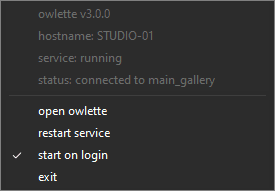
The four rows at the top are read-only status; the four below the separator are actions.
| menu item | description |
|---|---|
| owlette v<version> | Version of the agent installed on this machine (read-only) |
| hostname: <host> | This machine's COMPUTERNAME (read-only) |
| service: <state> | Whether OwletteService is running (read-only) |
| status: <cloud status> | Whether the service is reaching owlette (read-only). A fifth row appears under it when a health probe has something to report. |
| open owlette | Open the desktop app's window |
| restart service | Restart OwletteService. A running service is asked to restart itself through tmp\restart.flag, so no elevation prompt appears; only starting a stopped service can raise one. |
| start on login | Toggle whether owlette starts on user login |
| exit | Stop OwletteService (triggers a UAC prompt), then quit the app — which closes the window and removes the tray icon. Declining the prompt leaves the service running, and it re-launches the tray within 30 seconds. |
notifications
The app raises a Windows toast when the machine's state changes in a way an operator standing at it would want to know about. Three rules keep them rare:
- Only the error tier notifies. The dim connection issues state — which every routine service restart passes through — shows in the icon and the tooltip, but never raises a toast.
- An error must hold for 5 seconds before it is worth a toast, and each episode raises one — a flapping service does not produce a stream of them.
- Nothing is raised in the first 10 seconds after launch, so a service that is still starting is not reported as an incident.
When the error clears — all the way back to connected, not merely back to connection issues — a single owlette — back online toast confirms it.
| state | toast | what to do |
|---|---|---|
| service stopped, not responding, or disabled | owlette — service stopped | Use restart service from the menu; if the machine is unpaired, pair it again. |
config_error | owlette — config error | config.json is missing or corrupt — reinstall. |
auth_error | owlette — not registered | No token stored — pair the machine again. |
network_error | owlette — network unreachable | Check the machine's internet connection. |
connection_failure / fatal_error | owlette — connection failed / owlette — fatal error | Check service.log. |
restart service confirms itself with a toast either way — restarting or starting, and the reason when it fails. start on login is silent unless the shortcut cannot be written.
Toasts need the Start menu shortcut
Windows silently discards every toast from an app whose AppUserModelID is not registered by a Start menu shortcut — the app is told the notification succeeded and nothing appears. The installer ships the Owlette Start menu entry that carries that id. If toasts stop arriving, check that the entry still exists before looking anywhere else.
ipc communication
The tray icon communicates with the service through an IPC status file:
C:\ProgramData\Owlette\tmp\service_status.jsonThe service attempts status updates from its main loop, but writes are throttled. It updates the file when service, Firebase, or health state changes, when the service is shutting down, or when unchanged content has reached the 30-second refresh floor. Unchanged content inside that floor is skipped.
status file contents
{
  "service": {
    "running": true,
    "last_update": 1777053600,
    "version": "3.0.0"
  },
  "firebase": {
    "enabled": true,
    "connected": true,
    "site_id": "my-site",
    "site_name": "my site",
    "last_heartbeat": 1777053595
  },
  "health": {
    "status": "ok",
    "error_code": null,
    "error_message": null,
    "checked_at": 1777053580,
    "probe_results": {
      "config_readable": true,
      "firebase_section_present": true,
      "token_store_accessible": true,
      "network_reachable": true
    }
  }
}
firebase.site_name is the site's display name, published once the service can resolve it. It is what the tooltip and the status: row name in connected to <site> — when it is empty, the tray falls back to site_id.
launching the tray
The service launches the tray icon automatically during startup using the logged-in user's session:
- Service detects the active user session via
WTSQueryUserToken - Launches
C:\ProgramData\Owlette\app\owlette-desktop.exe --trayunder the user's account (so the icon appears in their tray)
The desktop app is independent — if it crashes, the service continues running. The service re-launches it on its next status check if it's not running. It is single-instance: launching it again while the tray is present forwards the arguments to the running app rather than starting a second one.
process monitoring
The agent monitors configured processes every 5 seconds, detecting crashes, stalls, and exits. When a managed process goes down, the agent automatically restarts it when its launch mode is active (always, or scheduled inside a matching schedule window).
remote commands
The agent listens for commands from the web dashboard via Firestore. Commands are written as entries in a pending command map, executed by the agent, and mirrored into a completed command map as progress, completion, failure, or cancellation records.