
installation
there are four supported ways to install or update the owlette agent on a Windows machine.
- Interactive packaged installer for a single machine
- Silent packaged installer with
/ADD=for bulk enrollment - Remote deployment to machines that already run the agent
- Manual packaged repair or source-development setup
method 1: interactive packaged install
Download the packaged installer, run it as Administrator, and authorize the machine with the device-code pairing flow.
steps
- Log into the owlette dashboard.
- Click the download button in the header bar.
- Save
Owlette-Installer-v<version>.exeto the target machine. - Right-click the installer and select Run as administrator.
- Follow the installer wizard.
- The owlette window opens on join a site, showing the pairing phrase, the authorization link for the server you installed against, and the environment it belongs to. The agent starts polling immediately. There is no console.
- Authorize the machine: click open owlette.app/add in that window to pair from this machine — the button names
dev.owlette.appon a/SERVER=devinstall — or visit the displayed link from your phone or another computer and enter the phrase. Pairing completes within seconds of approval. - Meanwhile the installer registers and starts the Windows service. This is unconditional — a machine that is never paired still ends up with a running service, it simply has no site to talk to yet.
- On the final wizard page, leave open owlette checked and click Finish to bring the window back up. That is not a second pairing step, and silent installs skip it entirely.
Pairing phrases expire after 10 minutes. Credentials are stored encrypted at C:\ProgramData\Owlette\.tokens.enc.
Kiosks, signage, media servers, and headless or RDP machines: nothing opens a browser on the target machine on its own. The phrase and its link are displayed, polling starts, and you authorize from your phone or another computer.
--no-browserandOWLETTE_NO_BROWSER=1are still accepted byconfigure_site.pyso existing deployment scripts keep working, but they no longer change anything. For machines nobody is standing in front of, enroll with/ADD=instead — see method 2.
method 2: silent install with /ADD=
Use this path for bulk deployment when an admin has already generated and authorized a pairing phrase.
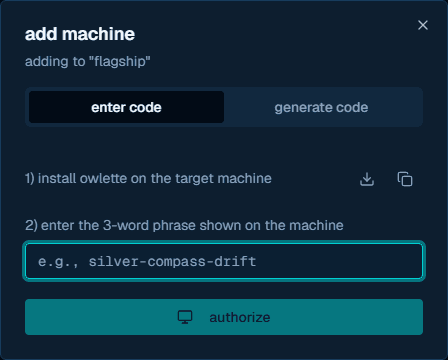
steps
- In the dashboard, click the
+button next to the view toggle. - Open Generate Code.
- Copy the pairing phrase, for example
silver-compass-drift. - Run the installer on each target machine:
Owlette-Installer-v<version>.exe /ADD=silver-compass-drift /SILENTFor a fully quiet install:
Owlette-Installer-v<version>.exe /ADD=silver-compass-drift /VERYSILENT /SUPPRESSMSGBOXES /NORESTARTThe installer passes /ADD= to configure_site.py --add. The agent polls /api/agent/auth/device-code/poll with the phrase and completes as soon as the server returns tokens.
installer flags
| flag | description |
|---|---|
/ADD=phrase | Preauthorized pairing phrase for silent enrollment |
/SERVER=prod | Use https://owlette.app/api; this is the default |
/SERVER=dev | Use https://dev.owlette.app/api |
/SILENT | Minimal UI with progress only |
/VERYSILENT | No installer UI |
/SUPPRESSMSGBOXES | Suppress message boxes |
/DIR="C:\path" | Custom install directory |
/NORESTART | Do not restart after installation |
/LOG="C:\path\setup.log" | Write an Inno Setup log to the chosen path |
Example for the dev environment:
Owlette-Installer-v<version>.exe /SERVER=dev /ADD=silver-compass-drift /VERYSILENT /SUPPRESSMSGBOXES /NORESTARTmethod 3: remote deployment or upgrade
Remote deployment requires a target machine that already has a running owlette agent. The agent receives an install_software command, downloads the installer, verifies its SHA-256 checksum, and then executes it with the provided silent flags.
Required fields for an owlette agent upgrade:
| field | required | notes |
|---|---|---|
installer_url | yes | Direct URL to the installer .exe |
installer_name | no | Defaults to installer.exe when omitted |
silent_flags | no | Use installer flags such as /VERYSILENT /SUPPRESSMSGBOXES /NORESTART |
sha256_checksum | yes | 64-character SHA-256 of the installer; the agent refuses remote installs without it |
verify_path | no | Optional path checked after installation |
timeout_seconds | no | Defaults to 2400 seconds |
Example command payload:
{
  "installer_url": "https://downloads.example.com/Owlette-Installer-v<version>.exe",
  "installer_name": "Owlette-Installer-v<version>.exe",
  "silent_flags": "/VERYSILENT /SUPPRESSMSGBOXES /NORESTART /SERVER=prod",
  "sha256_checksum": "<64-character sha256>",
  "verify_path": "C:\\ProgramData\\Owlette\\agent\\src\\owlette_service.py",
  "timeout_seconds": 2400
}
In the dashboard deployment flow, provide the installer URL, silent flags, optional verify path from a preset/template when available, and target machines. The dialog computes sha256_checksum server-side as soon as an installer URL is entered, and falls back to a manual hex field for URLs the web server cannot reach; a deployment cannot be submitted without one.
method 4: manual packaged repair or source development
There are two distinct manual flows.
packaged installer layout
Use this only on a machine that already has the packaged layout under C:\ProgramData\Owlette. The service installer script expects embedded Python, the service host, scripts, and agent source in that layout:
C:\ProgramData\Owlette\python\python.exeC:\ProgramData\Owlette\tools\owlette-host.exeC:\ProgramData\Owlette\scripts\install.batC:\ProgramData\Owlette\agent\src\owlette_runner.py
To re-run pairing, open the owlette window on the machine and choose join site — from the app menu, or from the button in the status bar when the machine belongs to no site. A machine that still belongs to a site shows leave site there instead: leave first, then join. Both run the same pairing helper the installer does.
The console equivalent:
cd /d C:\ProgramData\Owlette
python\python.exe agent\src\configure_site.py
To repair the Windows service registration:
cd /d C:\ProgramData\Owlette
scripts\install.bat
source clone for development
A raw source clone does not include the packaged python\, tools\, or installed service layout. Use it for development, testing, or building a new installer package:
git clone https://github.com/theexperiential/owlette.git
cd owlette\agent
python -m pip install -r requirements.txt
Do not run agent\scripts\install.bat directly from a raw clone unless you have first built or staged the same packaged layout that the installer creates.
how pairing works
The installer chooses a pairing path after copying files, then installs the service. The service install is unconditional: pairing no longer gates it, so an unpaired machine still ends up supervised. Pairing itself is skipped only on an upgrade — a valid site configuration already bound to the requested server.
Authorization options:
| method | when to use |
|---|---|
| owlette window | Single-machine install - the installer opens join a site, which shows the phrase and a button that opens the pairing page on this machine |
| Another device | Headless/RDP machines, or kiosks showing live content - read the phrase from the window or console and authorize from your phone or another computer. --no-browser and OWLETTE_NO_BROWSER=1 are still accepted for compatibility but no longer change anything |
/ADD= | Bulk install with a preauthorized phrase |
post-installation verification
After installation, verify the agent is running.
check windows services
- Open Services (
Win + R, thenservices.msc). - Find
OwletteService. - Confirm the status is Running.
check logs
C:\ProgramData\Owlette\logs\service.log
C:\ProgramData\Owlette\logs\service_host.log
C:\ProgramData\Owlette\logs\service_stdout.log
C:\ProgramData\Owlette\logs\service_stderr.log
C:\ProgramData\Owlette\logs\pairing_debug.log
service_host.log is owlette-host's own log: service registration, agent spawns, exit codes, restart backoff, and stop escalations. service_stdout.log and service_stderr.log are the supervised agent's raw output.
Useful startup lines include:
OWLETTE AGENT STARTING - v<version>
STARTUP COMPLETE
Firebase client initialized for site: <site_id>
Firebase client started successfully
owlette initialized
check dashboard
The machine should appear in the selected site with:
- Online status
- CPU, memory, and disk metrics
- Agent version
check system tray
The owlette service launches the desktop app in tray mode as soon as an interactive session is available, so the tray icon appears without anyone starting it by hand. The installer also adds a startup shortcut for the installing user; that shortcut is what the start on login toggle in the app menu and the tray's right-click menu switches on and off, and turning it off never touches the service. If the icon is not visible, check the hidden-icons overflow menu or launch Owlette from the Start menu.
uninstallation
Use Windows Settings > Apps > owlette > Uninstall.
The uninstaller:
- Closes the desktop app.
- Stops and deregisters
OwletteServiceby runningtools\owlette-host.exe uninstall, which waits for the service to fully stop so the agent can report itself offline first. - Removes the Windows Defender exclusions that pre-PawnIO versions added, plus any leftover legacy WinRing0 driver services. The PawnIO driver stays installed — it is a shared component other tools use; remove it separately from installed apps if it is no longer needed.
- Removes installed component directories:
python\,agent\,app\,tools\, andscripts\. - Removes installed top-level files such as
README.mdandLICENSE.
By default, it preserves user data under C:\ProgramData\Owlette, including:
config\logs\cache\tmp\.tokens.enc
In non-silent uninstall mode, the uninstaller asks whether to remove all owlette configuration and data files. Accept that prompt only when you want a full cleanup. Silent uninstalls preserve data for upgrade and repair flows.
installer details
The owlette installer is built with Inno Setup and bundles:
| component | purpose |
|---|---|
| Embedded Python | Python runtime; no system Python is needed for packaged installs |
| owlette-host | Windows service host at C:\ProgramData\Owlette\tools\owlette-host.exe — registers, starts, stops, and supervises OwletteService (replaced NSSM in 3.0.0) |
| Agent source | Python modules under C:\ProgramData\Owlette\agent\src\ |
| Desktop app | C:\ProgramData\Owlette\app\owlette-desktop.exe — the local configuration window and the tray icon, in one process |
| WebView2 runtime | Microsoft's Evergreen bootstrapper, run only on machines that lack the runtime the desktop app renders in (common on LTSC/IoT kiosk images) |
| PawnIO driver | Signed kernel driver LibreHardwareMonitor uses for CPU temperature sensors, installed only when absent or older than the bundled 2.2.0 (replaced the WinRing0 driver used through 3.1.0) |
system requirements
| requirement | minimum |
|---|---|
| OS | Windows 10 or later, 64-bit |
| RAM | 50 MB agent overhead |
| Disk | About 200 MB including embedded Python |
| Network | Access to the configured owlette API and Firebase services |
| Permissions | Administrator privileges for service installation |
agent
The owlette agent is a Python Windows service that runs in the background, monitoring your processes, collecting system metrics, and syncing everything to the cloud. It's the core of the owlette system — every machine you want to manage needs an agent installed.
configuration
The agent can be configured locally in the desktop app, remotely from the web dashboard, or by editing config.json directly. The local source file is C:\ProgramData\Owlette\config\config.json.