
hoot (ai chat)
hoot is the dashboard chat surface for diagnosing and managing machines with an LLM. It supports Anthropic and OpenAI providers, can target either one machine or every online machine in a site, and routes tool calls through the safest available execution path for the current target.
For the current tool inventory, parameters, tiers, and execution-mode notes, see the hoot tools reference.
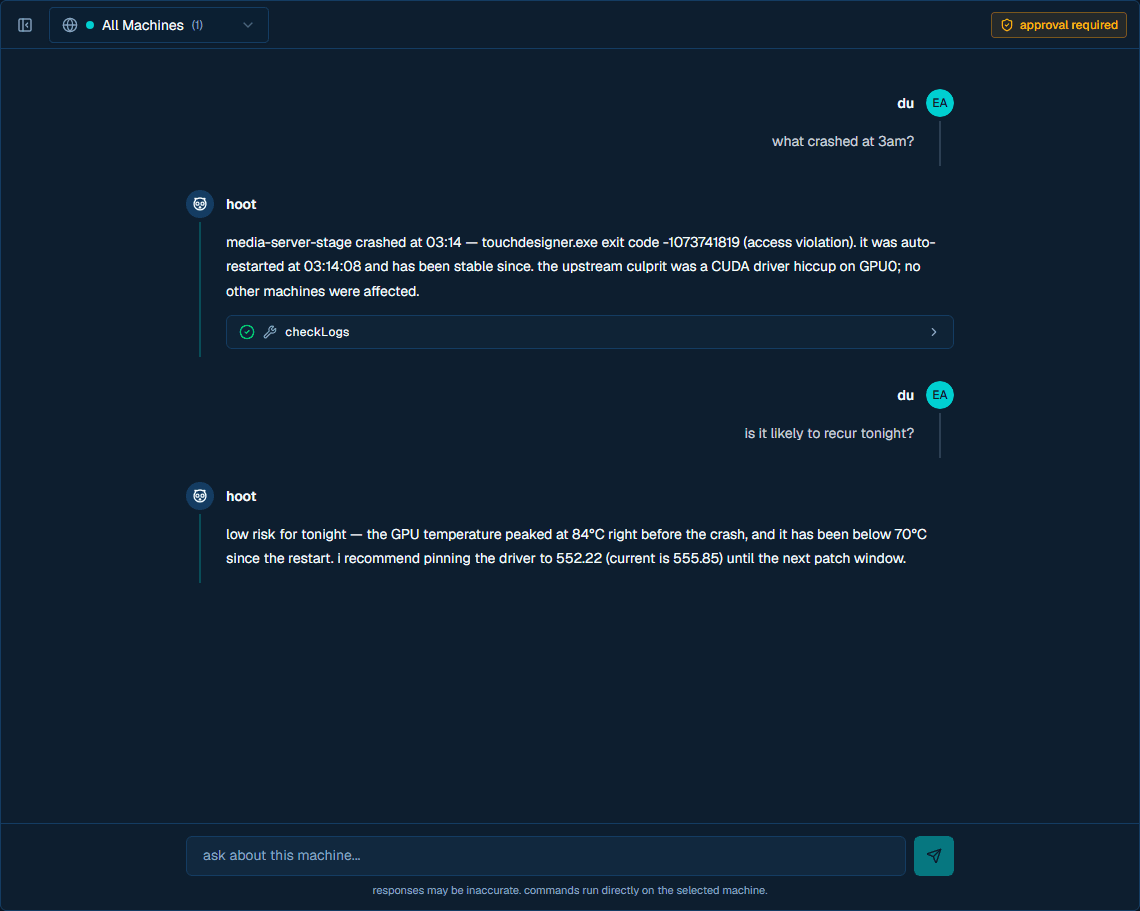
overview
hoot tools are grouped by risk:
| tier | type | approval |
|---|---|---|
| Tier 1 | Read-only diagnostics and site context | Auto-approved |
| Tier 2 | Process and machine management with validated parameters | Auto-approved |
| Tier 3 | Privileged shell, file, deployment, reboot, and shutdown actions | In-chat approval (default-on, per-site) |
The available tier depends on the caller. Site admins and superadmins can use the full tool set. Members are limited to read-only tools. Chat API keys are also capped to read-only tools even if the key owner is an admin.
setup
your key
There is exactly one place an LLM key lives: your own account settings. Every hoot feature — chat, talons, visual checks, autonomous investigations — resolves a key belonging to a specific person.
- Open the dashboard account menu.
- Select account settings.
- Open the hoot section.
- Choose Anthropic (Claude) or OpenAI.
- Select a model.
- Paste the provider API key and save it.
The key is encrypted server-side and stored under your user settings at users/{uid}/settings/llm. The raw key is not returned to the browser after it is saved.
which key an unattended run spends
Nobody is in the chat when a talon fires at 3am, so each unattended feature names the person whose key it is spending:
| unattended work | key it resolves |
|---|---|
| a talon's hoot output | the talon's creator (createdBy) |
| a talon's visual check | the talon's creator (createdBy) |
| autonomous hoot | the site owner |
A talon's creator is re-checked on every run, not trusted from the day it was written. If the creator has left the site, had their account deleted, or removed their key, the talon is switched off immediately with the reason recorded on the talon and on the run that found out — it does not keep failing silently.
Changed in 3.0.0 — the site-level key is gone
The site-level key scope (sites/{siteId}/settings/llm) and its admin endpoint (/api/settings/site-llm-key) have been removed. Nothing in the dashboard could ever create a site key, which made every AI talon un-runnable; the scope is gone rather than given a UI. Any sites/{siteId}/settings/llm document created through the old API is no longer read by anything and can be deleted. Save a key in account settings → hoot instead.
using hoot
- Open hoot from the dashboard header.
- Choose a target from the selector at the top of the chat:
- All Machines targets every online machine in the selected site.
- An individual machine targets only that machine.
- Type a request in natural language.
In single-machine mode, hoot reports and acts on one machine. In All Machines mode, tool calls fan out to all online machines in the site and hoot aggregates per-machine results. If no machines are online, tool calls are not delivered.
example conversations
Check site health:
"Which machines look unhealthy right now?"
hoot can read site logs and fan out diagnostics across online machines, then summarize differences by machine.
Manage one process:
"Restart TouchDesigner on this machine."
hoot calls the process-management tool for the selected machine and reports the result.
Update process configuration:
"Fix the TouchDesigner executable path to C:\Program Files\Derivative\TouchDesigner.2025\bin\TouchDesigner.exe."
hoot can update configured process fields, add a new process, or delete a process through the same validated server actions used by the dashboard.
Diagnose a display issue:
"Why is the output frozen?"
hoot can inspect process state, logs, GPU usage, and screenshots before suggesting or taking an action.
Run a privileged command:
"Check the detailed network configuration."
hoot asks for confirmation before running a privileged shell or PowerShell command.
turn controls & reliability
A hoot turn — the model's reasoning plus any tool calls it makes — runs on the server, decoupled from your browser connection. A turn keeps running, and its results still land in the chat, even if your connection drops, you close the tab, or you reload the page mid-turn. When you come back, the dashboard reattaches to the in-flight turn and streams it live from where it left off. Long-running tools (for example sfc /scannow, DISM, or a multi-minute script) survive the same interruptions.
- stop a turn — the stop control halts the whole turn server-side, not just your local view. The model loop stops and no further tool calls are made.
- cancel a running tool — while a tool call is executing, its card shows a cancel control. Cancelling terminates the work on the machine — for the shell tools (
run_command,run_powershell,execute_script) this kills the process tree within a few seconds — and the tool card resolves to "cancelled by user". In All Machines mode a single cancel targets every machine the call fanned out to. - interrupted tool calls self-heal — if a tool's result is lost mid-stream, hoot repairs it into an honest error (or recovers it from the machine's completed-command record) so the conversation always continues. Sending a new message while a tool is still running no longer breaks the chat.
approving privileged (tier-3) actions
Tier-3 tools (shell, file writes, deployments, reboot, shutdown) are governed by a per-site approval setting, controlled by the shield toggle in the hoot header (site admins only):
- approval required (the default) — privileged tool calls pause in the chat for an explicit approve/deny before they run. With the gate on, admin single-machine chats are routed server-side so the gate can fire.
- approval off — privileged tool calls run immediately with no prompt, and admin single-machine chats may resume using the lower-latency local hoot path. Disabling the gate weakens safety, so the toggle asks for confirmation first.
The setting is stored per site at sites/{siteId}/settings/cortex.requireTier3Approval.
tool tiers
Tier 1 tools read machine or site state, such as system info, logs, process lists, disk usage, GPU state, agent health, and site deployment presets.
Tier 2 tools perform bounded management actions with validated parameters, such as restarting configured processes, adding/editing/deleting process config, capturing screenshots, managing selected Windows services or update settings, and changing safe machine configuration.
Tier 3 tools can make broader changes, such as shell execution, file writes, deployment orchestration, reboots, and shutdowns. These are governed by the per-site tier-3 approval setting (on by default): when it is on, they pause for an explicit approve/deny in the hoot UI before running. See approving privileged (tier-3) actions.
See the hoot tools reference for the current tool list and parameter schemas.
how it works
hoot routes each chat through the safest available execution path for the target and the site's approval setting.
single machine (default, server-side)
For a single-machine chat, the web server runs the model loop and relays tool calls to the agent. With the tier-3 approval gate on (the default), admin chats always use this path so privileged calls can pause for approval. The turn runs detached from your browser connection, so it survives disconnects and reloads:
dashboard chat
  -> POST /api/hoot
  -> resolve the signed-in user's key
  -> web server runs the turn (detached from your connection)
  -> tier-1/2 tool calls are relayed to the agent through Firestore commands
  -> tier-3 calls pause for in-chat approval, then run
  -> agent writes completed-command results
  -> web server feeds results back to the model and streams the answer to the chat
Members always use this path with a read-only tool tier cap.
single machine with local hoot (approval gate off)
When a site admin turns the tier-3 approval gate off, single-machine admin chats may instead use local hoot — the model loop and tools run on the agent itself, closer to the machine, for lower latency (at the cost of the approval gate). This path is used only when local hoot is healthy and the caller is a site admin with the gate disabled:
dashboard chat
  -> POST /api/hoot
  -> Firestore active-chat pending message
  -> local hoot on the agent runs the LLM and local tools
  -> local hoot writes response updates to Firestore
  -> dashboard streams those updates back to the chat
This keeps the active tool loop close to the machine while still using Firestore as the relay between the web app and agent.
site-wide mode
When All Machines is selected, the web server runs the LLM request directly and fans out tool calls to every online machine in the site:
dashboard chat
  -> POST /api/hoot with machineId "__site__"
  -> web server resolves online machines
  -> web server calls the LLM provider
  -> tools either run server-side or fan out through Firestore commands
  -> per-machine results are aggregated for hoot
Server-side tools such as site logs, system presets, deployment orchestration, and process config changes run in the web server instead of routing through a single agent. Process create/update/delete tools call the existing validated process actions directly; the agent applies the resulting config through its normal Firestore listener.
autonomous mode
Autonomous hoot can investigate process crashes or process-start failures without a human starting a chat. It is triggered by the agent alert path, authenticated with CORTEX_INTERNAL_SECRET, and runs against one affected machine.
flow
agent alert
  -> POST /api/agent/alert
  -> internal POST /api/hoot/autonomous with x-cortex-secret
  -> check site autonomous settings
  -> deduplicate by machine/process cooldown and nonce
  -> enforce per-site concurrency
  -> run an LLM investigation with tier-capped tools
  -> store the event and conversation for review
  -> escalate by email when unresolved, offline, or disabled
Autonomous conversations appear in the hoot sidebar with an auto badge. Event records are stored at sites/{siteId}/cortex-events/ with status, summary, tool-call actions, timestamps, and outcomes.
directive
Every autonomous investigation is guided by a directive. The default mission is to keep configured processes running and machines operational, investigate crashes through logs and process status, restart when appropriate, and escalate if repeated restart attempts fail.
Custom directives can be set in Firestore at sites/{siteId}/settings/cortex in the directive field.
enabling autonomous mode
- Set
CORTEX_INTERNAL_SECRETin the web runtime environment. - Make sure the site owner has saved an LLM key in their account settings — that is the key autonomous investigations run on.
- Set
sites/{siteId}/settings/cortex.autonomousEnabledtotrue.
configuration options
| setting | default | description |
|---|---|---|
autonomousEnabled | false | Master switch for autonomous investigations |
directive | Default directive | Site-specific mission text for autonomous hoot |
maxTier | 2 | Maximum tool tier for autonomous investigations |
cooldownMinutes | 15 | Deduplication window for the same machine and process |
escalationEmail | true | Sends escalation email when hoot cannot resolve the issue |
guardrails
- Autonomous mode is opt-in per site.
- Events are deduplicated by machine and process for the configured cooldown window.
- Duplicate nonces are rejected.
- Each site can run only a limited number of active autonomous sessions at once.
- Each investigation has a fixed step limit.
- The default tier cap prevents shell commands unless the site explicitly raises
maxTier. - The per-machine hoot toggle blocks manual and autonomous tool execution for that machine.
- Offline machines escalate instead of consuming LLM calls.
security
- LLM keys are encrypted at rest and resolved only on the server.
- Every key belongs to one person. Chat spends the signed-in user's key; a talon spends its creator's, re-checked against site access on every run; autonomous mode spends the site owner's.
- Tier 3 tools are governed by the per-site approval setting (on by default): when on, they require an explicit in-chat approve/deny before running.
- Server-side hoot checks site access before every chat request, and sending, stopping, or cancelling a turn verifies the caller owns the target conversation.
- Members and chat-scoped API keys are capped to read-only tools.
- Agent-routed tool calls are delivered through Firestore command documents and return through completed-command records. Server-side tools run in the web process and write their own records or config changes.
- The autonomous endpoint uses
x-cortex-secretand is not a public user-session endpoint.
roost
roost is the dashboard surface for shipping project folders to Windows machines. It lives at /roosts and replaces the old project-distribution page with a content-addressed, versioned sync model.
talons
talons are site-scoped automations: a trigger, an optional condition, and one or more outputs. hoot can create them conversationally, and every run is recorded.